Focus on Patient Reminders
Welcome to the next edition of our “Support Questions of the Month” series. Our client success team looks after hundreds of support tickets, so we’ve pulled together some of the most common questions clinics ask when configuring Patient Reminders in Ocean. Whether you’re onboarding new providers, troubleshooting templates, or exploring new features like patient-initiated cancellations, these answers will help you get the most out of your reminder workflows.
Allowing patients to cancel appointments through Ocean
Q: We heard there’s now a way for patients to cancel their appointments through the reminder. How does that work?
Rajeev says — Ocean now supports patient-initiated cancellations! And the best part is it can be turned on or off for each reminder rule.
When activated, your patients will receive the usual reminder, but it’ll show the option to cancel. If the patient cancels, Ocean will update the appointment status and notify your clinic so you can fill the slot quickly.
You can also specify a cancellation window to prevent any last-minute cancellations.
Please consult this guide for the steps to enable appointment cancellation.
Adding attachments to Patient Reminders
Q: Can I attach a PDF (like a handout or form) to an appointment reminder?
Kerry says — It isn’t possible to attach a file directly to an automated reminder, and that’s intentional by design. Reminders are designed to go out to many patients at once, so Ocean prevents attachments to make sure PHI isn’t ever shared accidentally.
If you need to share a general handout that doesn’t contain PHI, you can still include it by hosting the PDF somewhere secure and adding the link to your reminder template or secure message. You patients can then click the link in their reminder to view or download the file. This keeps your automated reminders safe, consistent, and compliant while still giving patients access to the information they need.
Using OntarioMD’s AI Consent Form
Q: We want to include the OMD AI consent form in our Patient Reminders, but we only want patients to complete it once. Is this possible?
Shawn says — To achieve this workflow with the OntarioMD Ai Consent Form, you can implement “form memory” into your AI consent form. Through this configuration, the form is still sent to the patient via Patient Reminders, but after the first submission, and with consent granted, the form displays alternative content and language confirming they’ve provided consent.
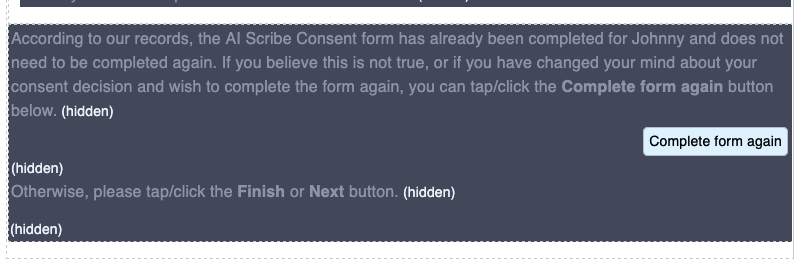
Any eForms completed through Ocean end up as a new document entry in the patient’s EMR chart.
If you’d like to enable form memory in your consent form, or any other Ocean Form, reach out to our support team and they’d be happy to set it up for you!
Displaying the correct day of the week
Q: Our reminders currently show only the appointment date and time. Is it possible to also include the day of the week?
Karlene says — To make sure patients see the full date and day of the week in their reminder, you can adjust the date formatting in your reminder template. In the template editor, simply update the @apptDate keyword by adding a formatting suffix: @apptDate.DDMMdyy.
This tells Ocean to display the appointment as the full day plus date. For example, if the appointment is on November 5, the updated keyword will show it as “Wednesday November 5”. It’s a small change that helps reduce confusion and keeps reminder messages clear for patients.
Adding a new provider to Patient Reminders
Q: How do I make sure our new doctor can send appointment reminders through Ocean?
Kerry says — When a new provider joins your clinic, you want to verify that Ocean is setup to allow reminders to send on their behalf. Even if the provider already has an Ocean account, they may need a licence.
Start by confirming the permissions in Cloud Connect. When set up properly, these permissions will allow the provider’s schedule to sync into Ocean and send appointment reminders.
Next, check to see if they have a Patient Engagement (either Basic or Plus) licence enabled. This is done in the Licence Management page in the Ocean Portal. If you need to add a licence, you can follow the steps in this guide.
Finally, review your existing reminder rules. You can either add the new provider’s schedule to one of your current rules or create a new rule if they require a different workflow.
Once those pieces are in place, Patient Reminders will be sent out based on the new provider’s schedule.