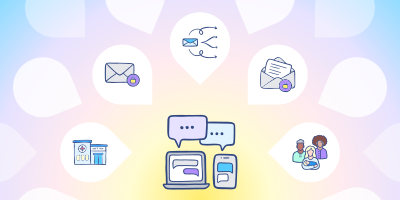
When patients receive a message about their care, they should immediately understand who it’s from and what they need to do next.
But if a message isn’t clear, uses an unfamiliar organization name, or critically, leaves out important details and clinic contact information, patients may be unsure whether it’s legitimate, which clinic they should contact with questions, or even where to go for the visit. We’ve even seen cases where incomplete details contributed to patients arriving at the wrong location and missing their appointment altogether.
Ocean includes several ways to make your communications clearer and more recognizable. Consider this your yearly reminder – here are three quick checks your clinic can complete today!
1
Review your Clinic Overview settings
Your Clinic Overview, also known as About My Clinic, can display your clinic’s logo, description, and contact information when a patient views a secure message.
Recently, we’ve updated Health Messenger to show the clinic name earlier in the verification process. This will help patients recognize who sent the message before they verify their identity. With this change, it’s especially important to ensure your clinic information is accurate and up to date.
For good measure, you can also include your clinic name directly in the subject line, along with your address and contact information in the body of the message. This is especially helpful for organizations with multiple locations.

Take action: Review your Clinic Overview and confirm that your clinic name, logo, description, address, and contact information are current and easy to find.
2
Choose a recognizable Email Friendly Name
Your Email Friendly Name will appear in patient-facing communications. If you’ve entered a legal, corporate, or regional organization name (like FHT, FHO, etc.), patients may not immediately recognize and connect it with the clinic they regularly visit.
This is especially important for organizations with multiple locations and clinics that have merged sites, opened new locations, or updated their Ocean configuration.

Take action: Confirm that your Email Friendly Name reflects the clinic name your patients know and clearly distinguishes your location from others.
3
Read your templates from a patient’s perspective
Templates make it easier to send consistent messages, but they can become outdated as your clinic’s workflows change.
For example, some older templates include detailed instructions asking patients to follow very linear steps to validate their identity, download an attachment, and continue to another screen to access a form. Health Messenger now offers more straightforward navigation, making some of these step-by-step instructions unnecessary or potentially confusing.
Review any other directions you’ve included as well, such as pre-visit steps, arrival instructions, preparation requirements, or cancellation policies. Make sure they still reflect what patients will actually experience and what you need them to do.
It’s also important to explain how patients should contact you if they have any questions or concerns. Clinics can choose whether to allow replies within Health Messenger, so patients may not always see a reply option. If you want them to call instead of responding in Health Messenger, include a clear phone number and instructions in the message.
Take action: Send yourself a test message or reminder and follow the instructions exactly as written. Remove outdated steps and confirm that patients know what to do next and how to reach your clinic.
A few minutes can prevent a lot of confusion
Clear patient communication depends on more than the message itself. Your clinic settings, sender name, and saved templates all shape what patients see and how confidently they can act on it.
Take a few minutes today to review your Clinic Overview, Email Friendly Name, and most frequently used templates. For more guidance, explore our Patient Communication Starter Kit, free to download below.